1 LG Optimus G launched in India for Rs. 34500

LG Optimus G launched in India for Rs. 34500


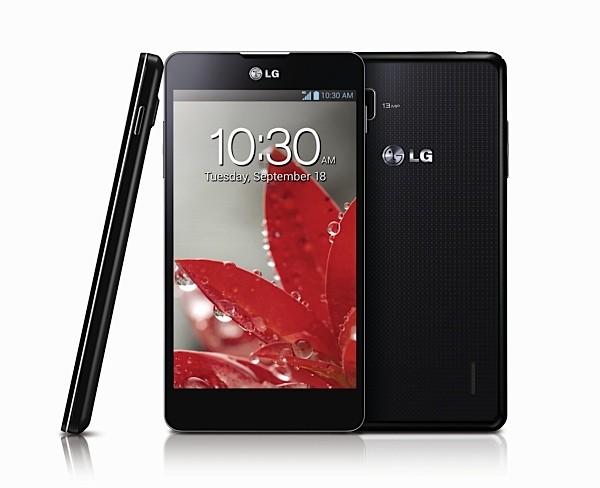
LG has officially launched the Optimus G (E975) in India. The Optimus G went on sale in India last week. It comes with a 4.7-inch (1280 x 768 pixels) True HD IPS + Display with 15:9 aspect ratio, 550 nits brightness and Gorilla Glass 2 protection, powered by a 1.5 GHz quad-core processor Qualcomm Snapdragon S4 APQ8064 processor with Adreno 320 GPU and runs on Android 4.1 (Jelly Bean) with LG  Optimus 3.0 UI on top. It has a 13MP camera with LED flash, Full HD video recording and a 1.3 MP front-facing camera.


It offers enhanced UX including upgraded QSlide that lets you open 2 apps in a single screen and now supports video, browser, memo, calendar and calculator. Other features include Dual Screen Dual Play that would enable mirroring between the smartphone and a TV and display different content on each screen (Smartphone and TV), Q Memo to jot notes, Live Zooming while watching a video, Smart Shutter and lots more.

LG Optimus G  Specifications

  •  4.7-inch (1280 x 768 pixels) True HD IPS + Display with 15:9 aspect ratio, 550 nits brightness

  • Android 4.1 (Jelly Bean) OS

  • 1.5GHz quad-core processor Qualcomm APQ 8064 processor with Adreno 320 GPU

  • Dimensions - 131.9 x 68.9 x 8.45mm, Weight – 145g

  • 13MP camera with an LED flash, 1080p Full HD video recording at 30 fps

  •  1.3MP front-facing camera

  • 2GB DDR2 RAM, 32 GB internal memory

  • 3G HSPA+, WiFi 802.11 a/b/g/n, Bluetooth 4.0, GPS / aGPS, NFC

  • 2,100 mAh battery

The LG Optimus G is price at Rs. 34,500 (MRP) and is available in various stores across India.

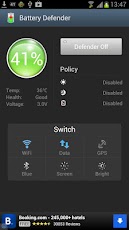
0 Increase your android's battery life


Hey guys do u have a android and its battery will always drain after sometimes then this application is for you.

It is a app named as battery defender which consumes your android battery by doing some operations in background 


Easy to use Battery saver! Extend your battery life!

Don't want to pay for battery saver apps? Try this app!

1. Automatically, just enable it.
2. Shows battery percent in the notification bar.
3. Fast wifi/gps/data/bluetooth switch.
4. App white list for streaming apps.

Why this app will save battery?

1. Automatically disable WiFi and data connection after you turning off your screen(with 15~20 secs latency).
2. Genius Sync, allow app to sync every 15 minutes but save battery.
3. Quiet sleeping. Disable data network and WiFi connections when you are sleeping. Sleeping time can be adjusted as your prefer.
4. Low Battery Policy. When battery is running out, it will disable data network and WiFi when you are not using your phone

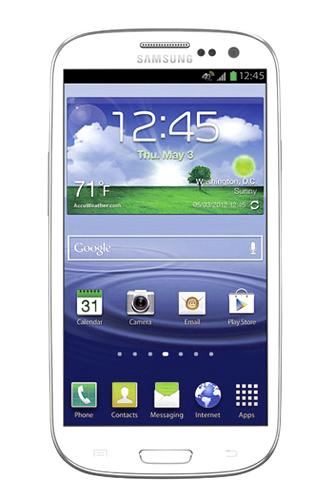
1 Top 5 Applications for Samsung Galaxy S3

Top 5 Applications You Must Have On Your Samsung Galaxy S3

Samsung Galaxy S3
The Samsung Galaxy S3 is undoubtedly a huge launch for Samsung this year, and it's been most advisable Android mobile phone since its release. Galaxy S3 went huge on advancement, with a lot of fresh functions the rumors hadn’t thought of. However, the very first thing which will you observe will be the size. Samsung has demonstrated that it can make a success of huge displays using the 5.3 “screen on the Galaxy Note.
There are lots of amazing apps for this amazing smart phone; however, we have also picked up some amazing apps for your Samsung Galaxy SIII which can turn your Smartphone in to Super phone.


1. Instagram (Free)


Samsung Galaxy S3 has an improved 8 Mega Pixel camera along with really fast response times which is one of the first thing you would like to test in your Galaxy SIII and also has the ability for taking images while you are capturing 1080p video clip. Instagram is a wonderful approach for sharing your stuff with world. It is free, really fast & fun app for Galaxy S3!


You can share your photographs in an easy photo stream with your friends - and same way you can follow photos of your friends by just clicking a single button. Instagram is really wonderful and every time when you open it, you will see something fresh.


2. Samsung Remote (Free)

Samsung Remote control Application will help you control your Samsung TV, Blue Ray Players and other Samsung products effortlessly once you have connected them on the same Wi-Fi router.

Key Features of Samsung Remote App

Remote you can use your Galaxy SIII as remote control for your Samsung TV and other Samsung products.

Bluetooth Power On - You can also use your Galaxy S3 to start your TV using Bluetooth.

Game Controller - You can use your phone to control games on TV with this feature.

So if you have a lounge filled with Samsung equipments, then you can download Samsung remote app and use your Galaxy S3 to regulate your Samsung TV and other Samsung products.


3. Flight Track

Fight Track is a must have application for your Galaxy S3 if you are a frequent flyer. This app will provide you real time status of flights and map monitoring of flights around the world.

This is one of the best flights tracking application available for android phones! Now you can facilitate your tablets as well with this amazing app! You can Keep track of flights with stunning maps or acquire live departure details, gate numbers and delays right away. Total worldwide coverage implies that you are able to keep track of your flights anywhere in world. You will be get updated for any cancellations and even guide you to find an alternate flight. It is quite marvelous.


4. Root Explorer

Root Explorer is an ultimate app to manage files for route users. If you have to a phone and want a file manager then your search ends here. It is rock steady and worth single penny of yours, looks no further.

Key elements includes Text Editor, SQLite database viewer, extract Rar archives, create and extract zip, execute scripts, multi-select, search, bookmark, permissions, sending files (through Bluetooth, emails etc), thumbnails for images, change file group/owner, APK binary XML viewers, create symbolic link, "Open With" facility, create shortcuts and lot more.


5. Dolphin Browser HD

Dolphin Browser is one of the easiest, fastest and most entertaining mobile Web browsers. Download this free mobile browser app and join over 50 million users who are enjoying distinctive functions of this élite mobile web browser.

Dolphin HD is one of the most effective android browsers. To provide customers more control over every single settings developers are working towards it, which will be really fantastic.

1 Auto Ypox App v1.00 Beta WITHOUT SURVEY

Auto Ypox App v1.00 Beta | 10 Days WITHOUT SURVEY

Hey guys here i m presenting you a newly launched ypox app.Auto Ypox App v1.00 Beta is a fully automated Ypox Application.You can earn full amount of Rs. 1.35 per day / per acc.


This software earn 1.36 rs in just a moment download this without survey ...

Screenshot


How to USE:

1. Just enters few phone numbers in "pnum.txt" file.

2. Login any Ypox Account

3. Click Go Button 

                                    DOWNLOAD

0 Fix USB Device Not Recognized Error In Windows

Fix USB Device Not Recognized Error In Windows

http://www.43oh.com/wp-content/uploads/2012/12/usb.jpgUSB Device Not Recognized, something that many people face while trying to connect smartphones, mobile phones, keyboard, USB sticks etc to the computer or laptop.I am really not sure why this error occurs but I seem to have found a way to remove this error.


This technique or procedure to fixing USB Device Not Recognized problem assumes that you have tried using different USB cables to ensure that there is no fault in the cable and it is a USB Driver issue.This trick to remove the USB Device Not Recognized error is used when you plug  in, say a smartphone and the computer gives the details of the smartphone as "Unknown Device".


Fix USB Device Not Recognized Error In Windows - Remove The Power Cable of Your Computer
This may seem very simple and you may feel that it is a stupid suggestion, but this actually works, me and a couple of my friends who had this problem fixed it by doing this, just removing the power cable of the computer for about 5 minutes.
After this, switching the computer on again, you should see that the USB Device Not Recognized Error In Windows has disappeared.


Explanation-

When you switch off your computer, the motherboard on which the USB drivers are installed still get some power, but when you remove the power cable of the computer then the motherboard does not get any power supply.So it truly shuts down.

This is like rebooting your phone when it gets stuck or when it hangs.You are giving an opportunity for the USB drivers to reboot and hence re-correct any errors that may have previously occurred.


This tutorial can be used in any of the Windows, Windows XP, Vista and 7.

2 How to Root Your Any Android Device

How to Root Your Android Device & Why we need to root ?

You’ve probably heard of people “rooting” their Android phones. If you’ve ever wondered how to do that yourself – or wondered why people would bother – you’re in luck. You can root your Android in just a few minutes.
After rooting your device, you have full access to the entire system and can run special types of apps that require root permissions. These apps can disable bloatware, control app permissions, enable tethering, and do lots of other cool things.

What Is “Root,” Anyway?

Android is based on Linux. On Linux and other UNIX-like operating systems, the root user is equivalent to the Administrator user on Windows. The root user has access to the entire operating system and can do anything. By default, you don’t have root access to your Android device, and certain apps won’t function without root access.
With root access, you can disable the bloatware that comes with your phone, manually deny app permissions, run a firewall, access the entire file system, or tether your device, even if tethering functionality has been disabled. You’ll find many apps that require root access in the Google Play store (formerly known as the Android Market), although they won’t function until you root your device.

Rooting isn’t mandatory – you only need to root your device if you want to do things that require root access.

Warnings

Before you root your Android phone or tablet, there are a few things you should be aware of:
Warranty – Some manufacturers assert that rooting voids your device’s warranty. However, rooting will not actually damage your hardware. You can “unroot” your device and manufacturers won’t be able to tell if it’s been rooted.
Security – Google Wallet, in particular, has a vulnerability on rooted devices that could allow other apps to access your PIN and other wallet information.  Google Wallet displays a warning message if you run it on a rooted device. If you’re one of the few people using Google Wallet for NFC payments, you may want to reconsider rooting your device.
Bricking – Rooting a device is a very safe process. However, there’s always some danger of “bricking” a device when you go outside the normal parameters and hack around with it — particularly if you’re trying to root a device or operating system version not supported by a tool. “Bricking” refers to breaking the device, making it about as useful as a brick. When you root, jailbreak, or install a custom ROM, or otherwise hack around, you do so at your own risk. It’s a good idea to do a little bit of research first and see if other people report success rooting your device.

Setup

The actual rooting process itself should only take a single click. However, you’ll need to do a few quick things first:
Download and install the Java JDK and Android SDK on your computer before continuing. Java must be installed before the Android SDK.
Enable USB debugging on your Android. On the device, go into the Settings screen, tapApplications, tap Development, and enable the USB debugging check box.

Connect your Android to your computer using its included USB cable. Don’t mount the device’s SD card on your computer – just plug it in.
You’ll also need the USB drivers for your phone or tablet installed. SuperOneClick itself should be able to automatically install the appropriate drivers – however, if this fails, you’ll need to download and install the appropriate drivers from the device manufacturer’s website.

Rooting With SuperOneClick

We’ll be rooting with SuperOneClick here. It’s a single-click way to root that supports a wide variety of different devices and should work for most people. If SuperOneClick doesn’t support your Android device, head over to the Android Development and Hacking forums at XDA Developers. There are subforums for most Android devices – type your device’s name into the search box and you’ll probably find information from other people that have successfully rooted it, perhaps by using another tool.
You can find download links for SuperOneClick at shortfuse.org, SuperOneClick’s official website. After downloading it, run the SuperOneClick.exe application.

Click the Root button in the SuperOneClick window and SuperOneClick should do the rest.

The process will take a few minutes. If you run into a problem, you might want to check the XDA Developers forum for your device, which we mentioned above, or run a Google search.

Restart your Android after rooting it.

Superuser

SuperOneClick automatically installs the SuperUser binary, which is also available from Google Play. Whenever an app on your device attempts to gain root permissions by calling the su command (just like calling the su command on Linux) you’ll be prompted to allow or deny the request.

Open the Superuser app to control the saved permissions and configure Superuser.

Now you’re free to install and use apps that require root access. We’ll have more coverage of things you can do with a rooted Android in the near future.

0 Free BSNL 3G GPRS Trick

Free BSNL 3G GPRS Trick March 2013 


Hello friends , After a long time I'm going to post Free BSNL 3G GPRS Trick which is confirmed working all over the country. Before I start discussing about this trick I want to tell you that you can read other tricks and hacks for other service providers like Idea, Reliance, Tata Docomo , Uninor and BSNL


Now without wasting a single minute lets get back to the trick. First of all I want to tell you that all the tricks on this blog are very easy to implement that is why you need not to worry. Today's trick works on proxy setting as the previous BSNL Proxy trick. It means you have to create a new configuration setting in mobile phone and after that you have to restart your phone.

How to Configure BSNL 3G GPRS Trick :

  • Create New Configuration Setting in Mobile Phone using following data :

Account Name : vivek2augpc Access Point Name : celloneportal Proxy Address : 192.168.87.163 Port : 8080 Homepage: http://wap.yahoo.com 

  • Save Setting and Restart Mobile Phone. Enjoy FREE 3G GPRS :)

How to Configure BSNL 3G GPRS Trick 2013 in Mozilla Firefox :

  • Open Mozilla Firefox and Configure it

Note : You must have active connective using cellopneportel as APN

  • Go to Menu >> Options >> Advanced >> Network >> Settings >> Manual Configuration

  • Input PROXY and PORT given below :

Proxy : 192.168.87.163 Port : 80

  • Set Homepage : wap.yahoo.com

  • Save Setting and Enjoy!! Free Internet on Computer :)

9 TCP and UPD Idea 3G hack working all over india

[reloaded] TCP and UPD Idea 3G hack 17 March 2013 working all over india


Hello Friends, I am to share a unique Idea 3g Hack which has never been posted on internet ever before. Recently idea has blocked all working ports but some how i have managed to tweak new ports and get them working. There are UPD and TCP ports and both are working all over India. This tricks is tested by my friends in Maharashtra, MP, UP, Delhi, Gujrat, Karnataka, Tamil Nadu and is working flawlessly for them. This TCP port is open in all over India where UPD port is oped in some states which are listed above except   some south stated. Yes its true UPD tricks always gives higher speed then TCP tricks.


FEATURES OF THIS TRICKS

  • Working with Old SIM :- This trick is working with the Old Idea SIM, with no Balance NO speed capping.

  • HTTP and HTTPS Protocol Supported :- Many of the online users use the eCommerce websites Like eBay and other Secured websites which uses the HTTPS protocols are now supported under this Servers. 

  • Zero Balance Condition :- Connection will be established at Null Balance, no need of any plan OR to mantain any balance

  • Download Status :- You can download the File in Parallel and can even resume it with maximum speed

  • VPN Stats :- No extra Pop-up adds and Mal-ware Websites. Just browse in the Clean Environment.

  • Unilmited Downloads :- There is no restriction in download you can download as much can.TCP Port speeds are bit slowerthan UDP. 

  • Full 3G Speed :- As per confirmation on this particular trick you should forget about speed capping as recharging with any minimum 3G pack will Uncap your Speed without any limits. You should get normal TCP 3G Speed between 400kbps to 600kbps.    

                       TESTED AND WORKING AS ON 17 TH MARCH


For survey problems click HERE ME


Use APN as mmsc OR mobile


1 Airtel VPN Hack With New Kebrum Servers

Airtel VPN Hack Confirmed Working  18 March With New Kebrum Servers


Hi friends, Airtel VPN Trick for  18 March 2013 is out now. This trick has been derived from previous "Airtel VPN Trick Based on Kebrum 2013" trick which was working earlier and after sometime it gets blocked. But after few days it was found to be working again. As today's trick is based on host so there is chances of getting SIM blocked. No problem you can simply unblock your Airtel SIM Card by reading this tutorial "Airtel SIM Unblocking Trick 2013".

With this Airtel VPN Trick your transfer rate will be 110+ KBPS (in IDM). If you want to boost your speed just recharge with small 3G Internet Pack or Activate Zero Rental 3G Plan. Before I start discussing about Airtel VPN Trick for March 2013, I would like to tell you that you can read other tricks and hacks for other service providers like Idea, Reliance, Tata Docomo, Uninor and BSNL .


Features of Airtel VPN Trick March 2013 :

  • Works on Default APN : airtelgprs.com

  • No Registration Required

  • Both HTTP and HTTPS Protocol Supported

  • Working in Both 2G and 3G Mode

  • Parallel and Resume Download Support

  • Fast TCP Connection


How to Configure Airtel VPN Trick March 2013 :


Note : If you are using the NMD VPN for the first time then make sure you have the TAP drivers Installed

  • Paste the downloaded Airtel VPN Configuration File in System Drive >> Program Files >> NMDVPN >> config

Windows 7 and Windows 8 Users RUN NMD VPN as the Administrator, if you are not doing this the NMD VPN will not be getting connected to the SERVERS.

  • Use Configuration As Follows : 

    • Airtel-Kebrum Server 1 - For Blocked Sim Card

    • Airtel-Kebrum Server 2 - For Live Sim Card

  • Use Access Point : airtelgprs.com


If you are getting error in the Server 1 then kindly replace the Host with the 94.249.139.3 80 and save the config or you can also choose the list of free working Homepages in your state.

3 Vodafone 3g Hack in Delhi and UP

Again Vodafone 3g Hack 24 march confirmed in Delhi and UP


Hi friends and readers of Vivek2augpc, It's party time Delhi and UP users because today I am going to share a new Vodafone 3G  VPN trick based on TCP Protocol. This trick is confirmed working in Delhi and West Bengal not sure about other states.  Simply download configuration file and NMD VPN and enjoy free internet on Vodafone. This trick can also be configured in Android Mobile via FeatVPN. Also no disconnection issue with this trick if you use your Username and Password without sharing with your friends. 


Note : this trick is confirmed in Delhi and UP i dont know about all other states ,so try yourself for other states

this trick was found by my freind Mr. sushant, So full credit goes to him


Features Of Vodafone 3G TCP-443 VPN Trick March 2013 :

  • Default APN : Vodafone 3G TCP-443 Trick connects on default APN i.e, portalnmms 

  • No Disconnection  Issue

  • Super Fast TCP Connection

  • HTTP and HTTPS Protocol Supported : Many of the online users use the eCommerce websites Like eBay and other Secured websites which uses the HTTPS protocols are now supported under this Servers.

  • Android Supported : Vodafone 3G TCP-443 VPN Trick can also be configured in Android Phones or Tablets via FeatVPN.

  • Multiple Download Support

  • Torrents Supported

  • No Balance Deduction (In Delhi and UP Confirmed)

       [CLICK HERE TO DOWNLOAD  CONFIG FILE

                                     or 

    See my post   How to do adworkmedia Survey

0 BSNL 3G Trick all over India

Hello daily visitors of this blog  after a long time a new working 3g trick is found by me and it was successfully worked in many states of India. There were too many tricks of Airtel and Vodafone but its constantly being blocked so its time to do something Unique. The BSNL trick only works with BSNL 3G SIM.


This is a UDP trick so you will get much faster 3G Speed as compared to other Proxy and TCP Porto Tricks. My friend has tested it in Rajasthan and I have personally tested in Maharashtra, If it is working in Maharashtra then it can be predicted that it will be working all over India. There is no Speed capping issue on BSNL and as its a government telecom so it won’t get blocked soon. for security and private reasons we  will not share this precious trick Openly,You will have to complete a small survey to download this trick. Lets see its benefits and requirements to configure BSNL 3G

Requirements

  • BSNL 3G SIM CARD (128k), 64k will also work
  • A 3G Dongle
  • Patience:P
  • NMD VPN

Benefits of BSNL 3G Trick

1.Based on UDP ports
 2.Working in all over India: 
3.Torrent Support
4.Working in Android: 
5.No Speed Capping Issue: 
  
                                            click here to download 

If anyone have survey problem then view this post

1 TO COMPLETE ADWORKMEDIA SURVEY EASILY

Hey guys after getting lots of complaints regarding “survey problem”. Lots of people are continuously commenting that “he will not able to complete survey after lots of try”   that’s why I make this post to complete adworkmedia or my survey easily in one try guaranteed

MUST READ CAREFULLY  IF U WANNA COMPLETE SURVEY IN ONE TRY.


What is adworkmedia survey  and why I prefer instead of fileice ?

Adworkmedia is a affiliate company which provides offer or surveys to various PPD(paid per download) to various sites like fileice, shrinkonce, cleanfiles and many more.

These PPD sites take survey from adworkmedia and provide to us .after completing survey from these sites we(means me and other bloggers) get paid but these PPD gets half money to download from them.

That’s why instead of using fileice or other PPD I will  use direct Adworkmedia links to provide survey downloads and gets full payment without giving commission to fileice etc.

THINGS TO REMEMBER WHEN COMPLETING SURVEY.

1. Your cookie must be cleared before trying to do survey
2. IP is unique (must disconnect  ur net before trying survey)

TOTURIAL STARTS HERE:

1. click on download

2.then select survey named as “grab your deals !signup for great deals”( bcoz is easy to do)

 IMPOTANT STEPS NOW READ CAREFULLY

3.then timesdeal survey was opened in new tab. If timesdeal was not open,instead of timesdeal HDFC and SHAADI.com was opened ,  disconnect net and clear cookie and try again.

4.If still timesdeal offer was not shown then again disconnect net and clear cookie again.

NOTE::::  U NEED TO DISCONNET NET AND CLEAR COOKIE EVERYTIME UNTILL U GET TIMESDEAL SURVEY

5.When trying two or more times, TIMESDEAL survey was opened then simply enter email addres in box and click on submit. (use Guerillamail.com for temporary email addres)

5.open mail which u received then copy verifying link and paste in new tab and press enter .

6.wait for 20 secs only and ur survey was unlocked successfully within 20 seconds.
 

Adworkmedia complete tutorial


My Collection Copyright © 2012 - |- Template Edited by Blog Template - |- Powered by Profit Clicking